
Microsoft Excel is a sophisticated software tool meticulously crafted to facilitate the storage, organization, and dynamic manipulation of structured data. At the heart of its capabilities lies the Excel Worksheet, a fundamental component that empowers users with an array of versatile functionalities. This in turn greatly simplifies the often laborious task of data management, enabling individuals and professionals alike to navigate the complexities of information with efficiency and finesse.
What is an Excel Worksheet
An Excel Worksheet serves as a virtual canvas, meticulously structured to accommodate rows and columns that elegantly house and categorize information. Within this digital realm, data finds its sanctuary, neatly organized and easily accessible for analysis and interpretation. Beyond its organizational prowess, an Excel worksheet harnesses the power of mathematical and statistical operations, allowing users to unravel insights hidden within the numbers. It’s through these dynamic capabilities that data transforms into actionable intelligence, molding itself to align with the strategic imperatives of businesses. As we venture forward, you’ll embark on a journey to master the art of crafting these virtual canvases as we delve into the creation process of a new Excel Worksheet.
How to create an Excel Worksheet
To make a new Excel worksheet, follow the steps below.
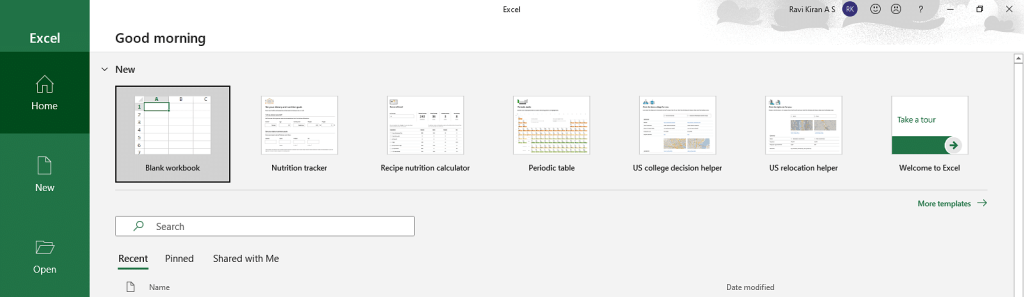
When you open Microsoft Excel, you’ll find various worksheet options to choose from by default.

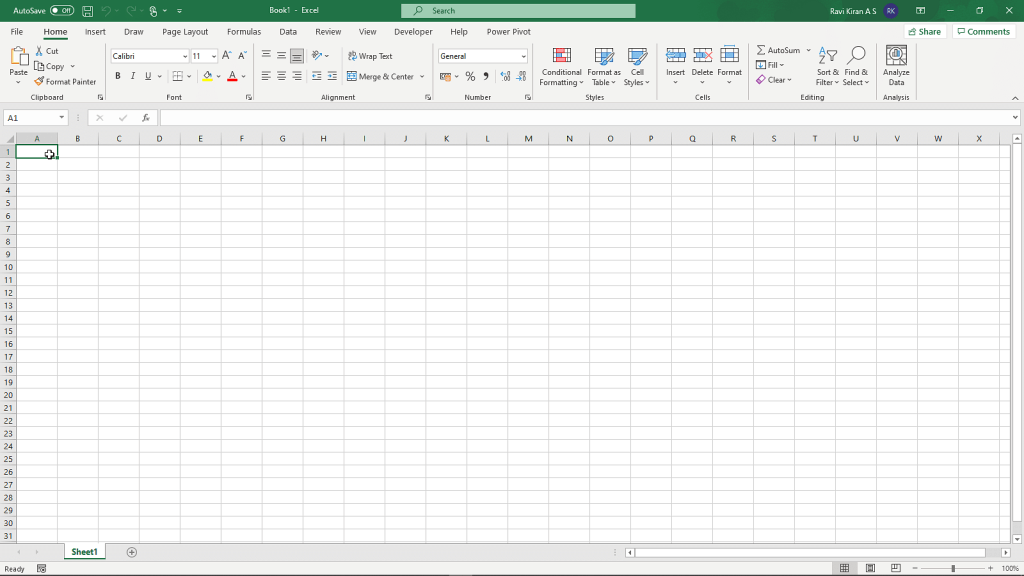
You can select the option based on the requirements. For now, create a blank worksheet. The blank worksheet looks as shown below.
Insert a New Excel Worksheet

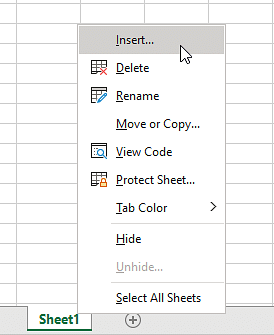
You might want to add a new worksheet next to the one you already have. This set of worksheets is called an Excel Workbook. To add a new worksheet, simply right-click on the sheet name at the bottom, as shown below.
By selecting the new worksheet option from the available options, you can create a new worksheet as displayed below.
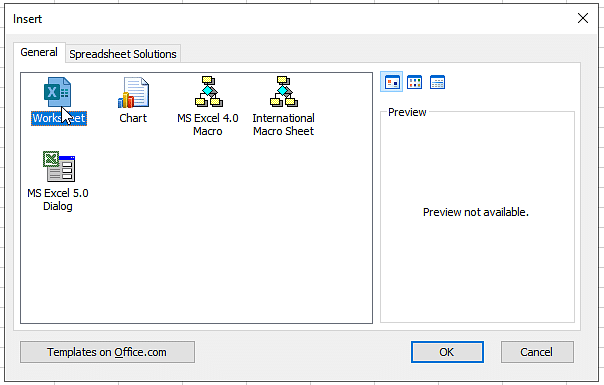
A new dialogue box will appear on the screen, where you can select the option to include a new sheet.
In the next part, you will learn how to rename a worksheet.
How to rename Excel Worksheet
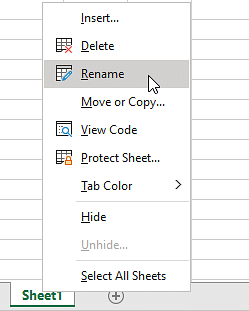
Change the name of the Excel Worksheet by right-clicking the sheet name and choosing “rename” from the dialogue box, like this:
How to delete Excel Worksheet
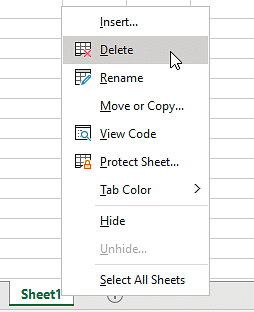
If you wish to eliminate the Excel Worksheet, you must right-click onto the worksheet tab and select the delete option from the dialogue box as shown below.
 Smileweb